
Creating a new Gmail account is simple, even if you have never used email before. You can create an account on a computer, Android phone, or iPhone by following a few steps.
In this guide, you will learn how to create a new Gmail account, choose an email address, set a password, and complete Google’s sign-up process. You will also learn what to do if your preferred username is unavailable or Google asks you to verify your identity.
Quick answer: Visit Google Account sign-in, select Create account, choose For my personal use, and follow the instructions on the screen. Complete any verification Google requests to finish creating your account.
Table of Contents
What Do You Need to Create a Gmail Account?
Before you start, prepare the following:
- A computer or smartphone with an internet connection.
- A name and a Gmail username you would like to use.
- A strong password that you have not used on other websites.
- A phone number or recovery email if Google requests verification or offers recovery options.
You do not need to install Gmail on a computer. You can create your account using a web browser.
How to Make a Gmail Account on a Computer
Follow these steps to create a new Gmail account on a desktop or laptop.
Step 1: Open the Google Account Sign-Up Page
Open Chrome, Microsoft Edge, Firefox, or another web browser. Visit the Google Account sign-up page.
You will see three options: For my personal use, For my child, and For work or my business. Choose the option that matches your needs. If you want to create a personal Gmail account, select For my personal use and follow the on-screen instructions.
Step 2: Enter Your Name
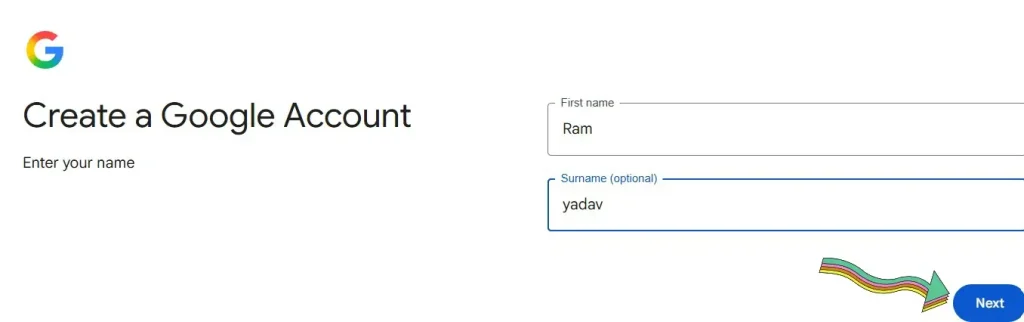
Enter your first name and last name in the appropriate fields, then click Next if the button appears.
Follow the instructions on the screen. Google may ask for additional information, such as your date of birth and gender.
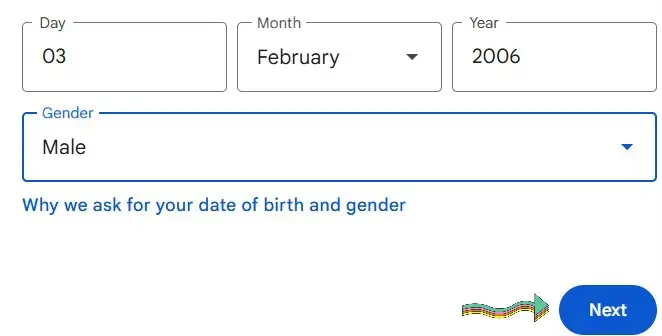
Enter accurate information where required.
Step 3: Choose Your Gmail Address
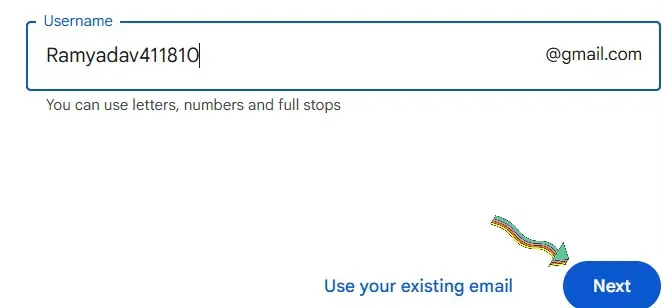
Choose a suggested Gmail address or enter a username of your choice if that option is available.
Your Gmail address will look like this:
Ramyadav411810@gmail.com
If your preferred username is already taken, try a different combination of your name, initials, or numbers that are meaningful to you.
Google may reject usernames that are already in use, too similar to existing usernames, previously used and deleted, or reserved to prevent abuse.
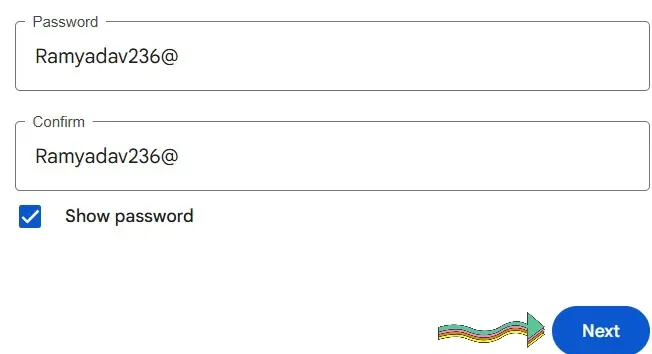
Step 4: Create a Strong Password
Enter a strong password and confirm it if Google asks you to do so.
For better security:
- Use a long, unique password.
- Avoid obvious choices such as your name or date of birth.
- Do not reuse a password from another account.
- Store your password in a secure password manager if possible.
Click Next to continue.
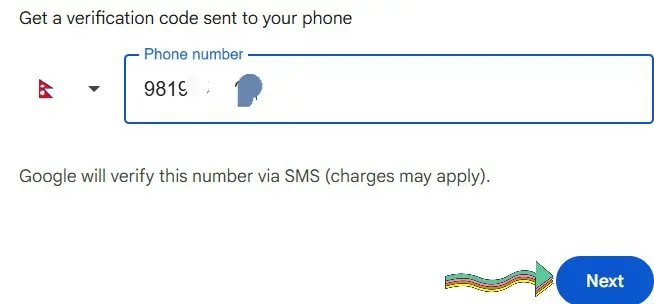
Step 5: Enter your Phone Number
Step 6:Complete Any Verification Google Requests
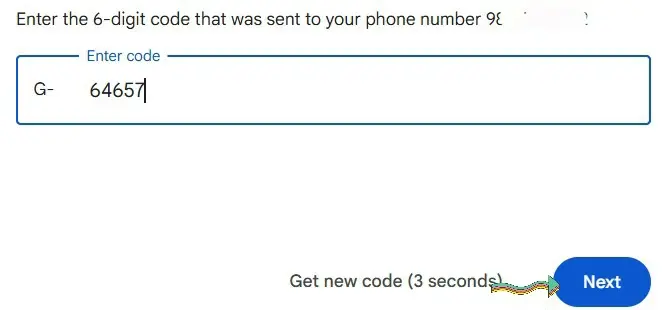
Google may ask you to provide a phone number or complete another verification step during signup.
Follow the instructions shown on your screen. The exact process can vary depending on the account-creation flow and Google’s verification requirements.
Do not assume that every user will see the same screens.
Step 7: Review Your Account Details
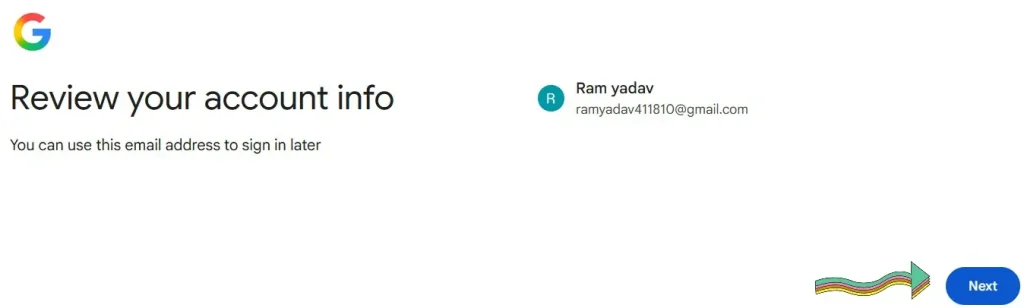
Continue through the remaining signup screens. Google may ask you to review account information and accept its applicable terms and privacy information.
Read the displayed information and complete the required steps.
Once the signup process finishes, open Gmail at gmail.com and sign in with your new account if necessary.
Official source: Google – Create a Google Account for Gmail
How to Create a New Gmail Account on an Android Phone
You can create a new Gmail account using your Android phone’s browser or the Gmail app.
- Open the Gmail app.
- Tap your profile picture or account icon.
- Select Add another account.
- Choose Google.
- Select Create account and then For my personal use, if prompted.
- Follow the instructions to enter your details and choose a Gmail address.
- Create a password and complete any verification Google requests.
- Finish the remaining setup steps.
The wording and location of some options may differ depending on your Android version and Gmail app.
You can also start from the official Google Account signup page.
How to Create a Gmail Account on an iPhone
If you use an iPhone, you can create a Gmail account through the Gmail app or a web browser.
Using the Gmail App
- Open the Gmail app. Install it from the App Store if needed.
- Tap your profile picture or account icon.
- Choose Add another account.
- Select Google.
- Tap Create account and choose the appropriate account type if prompted.
- Follow the instructions to enter your details and choose a Gmail address.
- Complete any requested verification and finish the signup process.
You can then use your new account in the Gmail app.
How to Create Another Gmail Account
If you already have a Gmail account and want another one, you can create an additional account without deleting your existing account.
- Open the Gmail app or visit Google’s signup page.
- If you use the app, tap your profile picture and choose Add another account.
- Select Google and choose Create account when prompted.
- Follow the signup instructions to create a different Gmail address.
- Finish the required verification and setup steps.
Keep your account passwords and recovery details secure. Check the profile icon before sending emails so you use the correct account.
How to Set Up a Gmail Account After Creating It
After you create a Gmail account, follow these steps to set it up and start using it.
Step 1: Open Gmail
Visit Gmail.com in your browser and sign in using your new Gmail address and password.
Step 2: Check Your Inbox
Once you sign in, Gmail will open your inbox. You may see a welcome email from Google with information about your account.
Step 3: Add a Recovery Phone Number or Email
Open your Google Account settings and add a recovery phone number or email address if available. This can help you recover your account if you lose access to it.
Step 4: Review Your Security Settings
Visit your Google Account’s Security section. Review your security options and enable two-step verification if it is suitable for you.
Step 5: Send a Test Email
Click Compose, enter an email address you can access, write a short message, and click Send. This helps you check that your Gmail account can send messages.
Your Gmail account is now ready for everyday use. You can send and receive emails, attach files, and manage your messages from your computer or phone.
Common Problems When Creating a Gmail Account
My Gmail Username Is Already Taken
Try another username. You can combine your name with initials or a few numbers, provided the resulting username meets Google’s requirements and is available.
Adding a dot may not solve the problem because Gmail treats dots as insignificant in Gmail usernames. Do not assume that a dotted variation creates a separate Gmail address.
Google Is Asking for Phone Verification
Follow the verification instructions displayed by Google. Whether a phone number is requested can vary, so do not rely on guides that promise phone verification will always be optional.
If you encounter an error, follow Google’s official account-help instructions rather than using unofficial verification services.
I Already Have a Google Account
You may not need another account. If you already use Gmail, YouTube, Google Drive, or another Google service, you may already have a Google Account.
Try signing in or recovering your existing account before creating a new one.
I Cannot Complete the Signup Process
Check your internet connection and carefully review any error message. Make sure the information you enter follows the instructions on the screen.
If the problem continues, use Google Account Help for troubleshooting.
Tips to Keep Your New Gmail Account Secure
After creating your account, take a few minutes to improve its security.
- Add a recovery phone number or email address if available.
- Use a unique password.
- Never share your password or verification codes with anyone.
- Review your Google Account security settings.
- Sign out when using a shared or public computer.
These steps can help protect your account and make it easier to recover access if you forget your password.
Frequently Asked Questions
Is creating a Gmail account free?
Yes. You can create a personal Gmail account without paying a signup fee. Optional paid Google services and storage plans are separate.
Can I create a Gmail account without the Gmail app?
Yes. You can use a web browser and visit the official Google Account signup page to create an account.
Can I create two Gmail accounts?
Yes. You can create another account if you need a separate email address. You must complete Google’s signup requirements for the new account.
Do I need a phone number to create a Gmail account?
Google’s verification requirements can vary. A phone number may be requested during signup, so you should follow the instructions shown on your screen rather than assume you can always skip this step.
What should I do if my Gmail username is taken?
Choose a different available username. Try adding your initials or a meaningful number, or use one of the suggestions Google provides.
Can I use my new Gmail account for YouTube?
Yes. A Google Account gives you access to Gmail and other Google services, including YouTube. Some services may have additional eligibility or setup requirements.
Related Guide: If you want to delete your Gmail account permanently, read our step-by-step guide on how to delete a Gmail account permanently.
Conclusion
Creating a new Gmail account is straightforward when you follow Google’s official signup process. Choose an available Gmail address, create a strong password, complete any requested verification, and review your account settings.
If you run into a problem, use Google’s official help pages to find the appropriate solution. Once your account is ready, you can use it to send emails and access other Google services.
Pingback: How to Delete a Gmail Account Permanently: Easy Steps (2026)
Pingback: What Is a CV vs Resume? 4 Easy Differences Explained