
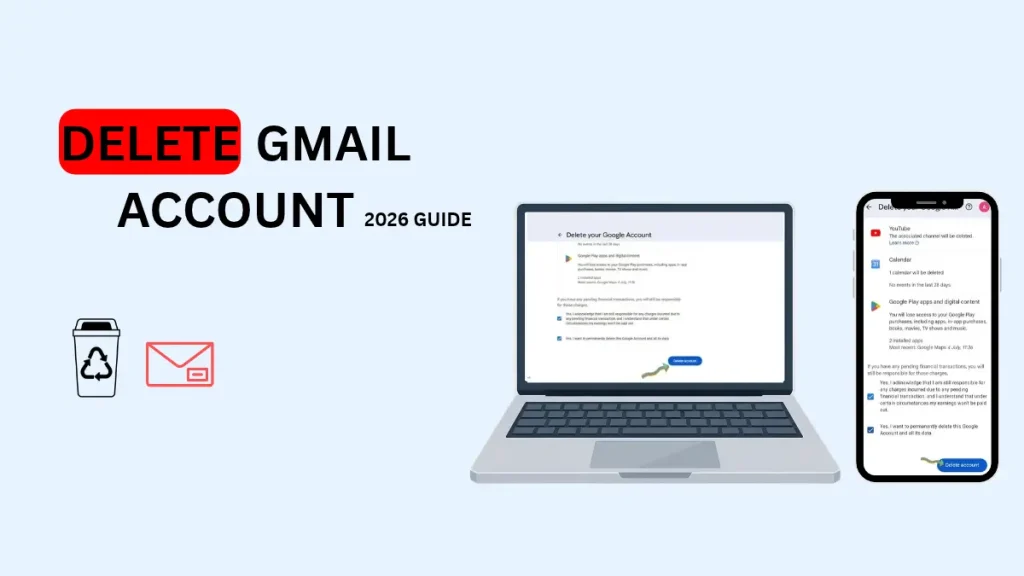
If you want to learn how to delete a Gmail account permanently, this step-by-step guide will help you do it safely. You can delete Gmail using an Android phone, iPhone, or computer by following a few simple steps.
Before you begin, understand that deleting your Gmail service is different from removing a Gmail account from your phone or deleting your entire Google Account. Each option has different consequences.
In this guide, you will learn how to delete a Gmail account, what to check before deleting it, how to remove Gmail from different devices, and what happens after deletion.
Table of Contents
Before You Delete Your Gmail Account
Before you delete a Gmail account permanently, take a few minutes to prepare. This can help you avoid losing important emails or access to other online services.
- Back up important emails: Download any messages or information you want to keep.
- Update your email address: If you use your Gmail address for banking, social media, work, or other websites, change it before deleting Gmail.
- Check connected services: Make sure you understand which Google services and accounts depend on your current email address.
- Prepare another email address: If you want to delete Gmail but keep your Google Account, Google requires another email address that is not a Gmail address.
- Make sure you can sign in: You generally need access to your Google Account to delete Gmail.
You can use Google Takeout to review and download available Google Account data before making changes.
How to Delete a Gmail Account Permanently from a Laptop
The easiest way to delete a Gmail account is through your Google Account settings. You can follow these steps on a Windows PC, Mac, or computer, or you can delete Gmail through a web browser.
Step 1: Open your Google Account
Visit myaccount.google.com and sign in to the Gmail account you want to delete.
Step 2: Open Data & privacy
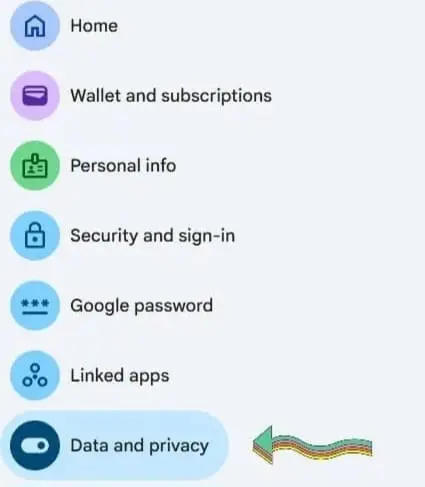
From the navigation menu, select Data & privacy. This section contains settings for managing your Google Account data.
Step 3: Find the Option to Delete a Google Service or Your Google Account
Scroll down to the section called Data from apps and services you use. Select Delete a Google service if you want to delete only your Gmail service.
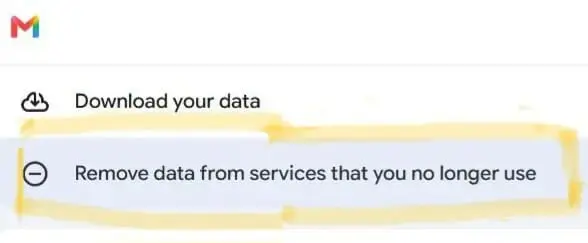
or select Delete your Google Account if you want to permanently delete your entire Google Account.
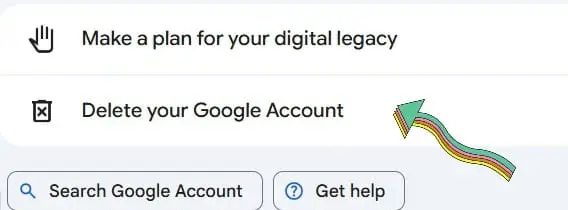
Google may ask you to sign in again before continuing.
Step 4: Enter Your Password
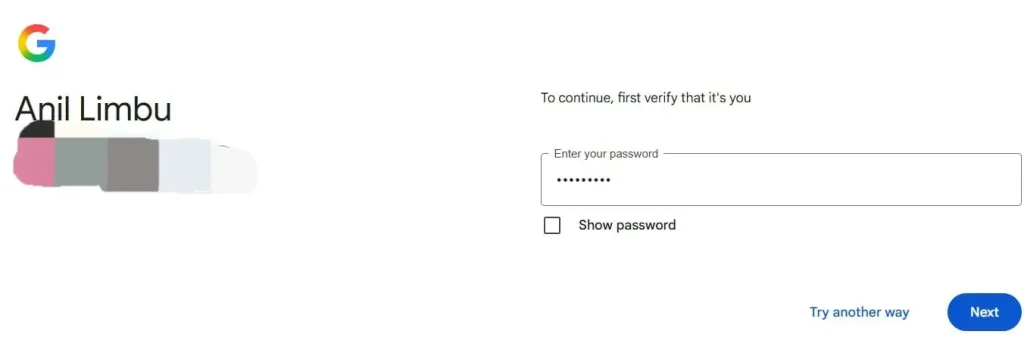
Enter the password for the Gmail account you want to delete, then follow the on-screen instructions to continue.
Step 5: Verify your email address
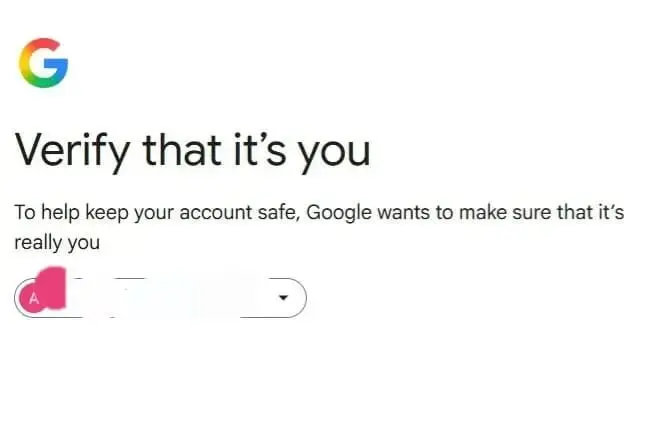
Open the verification message sent to your email address and follow the instructions.
Step 6: Download Your Data (Optional)
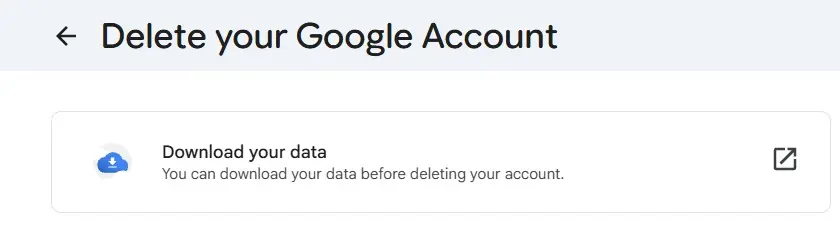
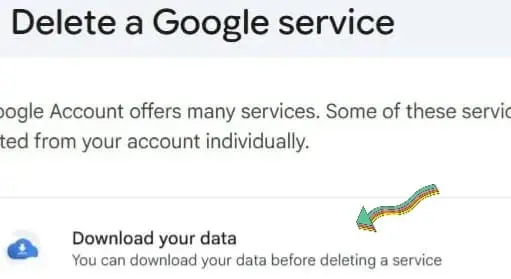
If your Gmail account contains important emails or other data you want to keep, you can download a copy before deleting your Gmail service. Make sure to save any important data you may need in the future.
Step 7: Delete Your Gmail Service or Google Account
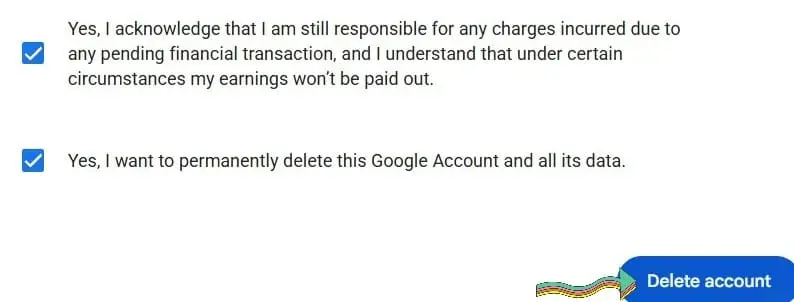
If you want to delete your entire Google Account, review the two confirmation statements carefully, check the boxes, and click the Delete Account button. This will permanently delete your Google Account and affect other Google services linked to it.
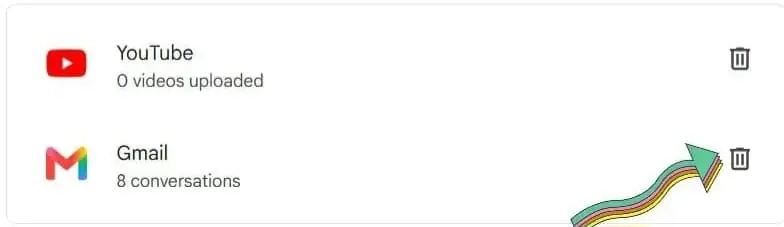
If you want to delete only your Gmail service, click the Delete icon next to Gmail.
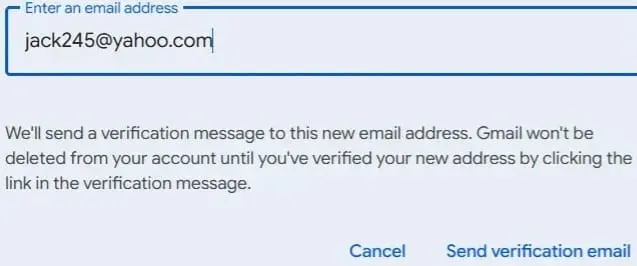
Enter an alternative email address that is not a Gmail address, such as Outlook or Yahoo Mail. Then, follow the on-screen instructions to verify your identity and confirm the alternative email address.
Google will send a verification message to your alternative email address.
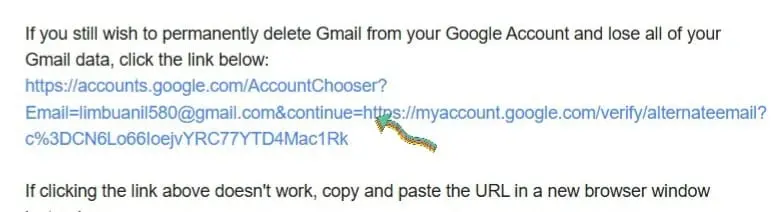
Open the message and click the verification link. Your Gmail service will not be deleted until you complete this verification process.
Then, select the option to delete a Google service from your account.

For the latest instructions, visit Google’s official Gmail deletion guide.
How to Delete a Gmail Account from Phone
If you are searching for how to delete a Gmail account from your phone, first decide what you actually want to do.
There are two different options:
- Permanently delete Gmail: This removes the Gmail service from your Google Account.
- Remove Gmail from your phone: This removes the account from the device or app without deleting the account itself.
If you want to permanently delete Gmail, open a browser on your phone and follow the steps in the previous section. You do not need to use a computer.
If you only want to stop seeing the account on your phone, follow the device-specific instructions below instead.
How to Delete a Gmail Account on Android
1. Open a web browser or the Gmail app on your phone.
- If you want to delete your Gmail account using a web browser, visit myaccount.google.com.
2. Sign in to the correct Google Account.
3. Go to Manage your account
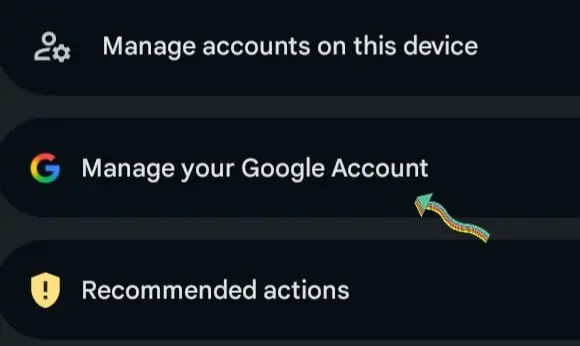
3. Open Data & privacy.

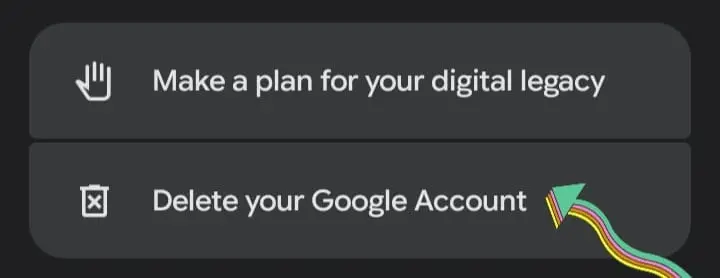
4. Find the Delete a Google service or delete your Google Account option and click on it.
If you want to delete a Google service, select Delete a Google service.

If you want to delete your entire Google Account, select Delete your Google Account.
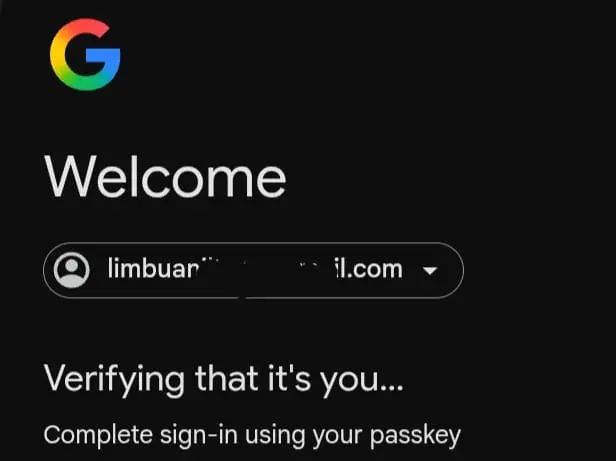
5. Verify your account by entering your password or completing the required verification steps.
6. Download Your Data (Optional)
Before deleting your Google Account or Gmail service, you can download a copy of your data if you want to keep it for future use.
7. Delete your Google account or Google Services
If you want to delete your Gmail service only, select the Delete Gmail option.
Enter an alternative email address, such as an Outlook or Yahoo address.
Google will send a verification email to that address. Open the email and complete the verification process to delete your Gmail service.
If you want to delete your entire Google Account, review the two terms, check the required boxes, and click Delete Account to confirm.
Option 2: Remove a Gmail account from an Android phone
If you only want to remove the account from your device, you do not need to delete Gmail permanently.
- Open your phone’s Settings app.
- Find Passwords & accounts, Users & accounts, or Manage accounts. The wording depends on your phone.
- Select the Google Account you want to remove.
- Tap Remove account.
- Confirm the action and enter your device PIN or password if requested.
Removing the account from your phone removes its synced email, contacts, settings, and other account data from that device. It does not permanently delete your Google Account.
For additional help, read Google’s official Android account instructions.
How to Delete a Gmail Account on iPhone
You can delete Gmail permanently from an iPhone by using Safari or another web browser. You do not need an Android device or a computer.
Follow these steps:
- Open Safari on your iPhone.
- Visit myaccount.google.com.
- Sign in to the Google Account connected to the Gmail address you want to delete.
- Open Data & privacy.
- Select Delete a Google service.
- Find Gmail and select its delete option.
- Enter an alternate non-Gmail email address if requested.
- Open the verification message and follow Google’s instructions.
Make sure you select the correct Google Account before continuing.
How to Remove Gmail from an iPhone Without Deleting It
If you only want to remove an account from the Gmail app, you do not need to delete the Gmail service.
- Open the Gmail app.
- Tap your profile picture.
- Select Manage accounts on this device.
- Choose the account you want to remove.
- Follow the on-screen instructions to remove it from the device.
The exact wording may differ by app version. Removing the account from the app does not permanently delete your Gmail address or messages stored in your Google Account.
What Happens After You Delete Your Gmail Account?
Before deleting your Gmail service, understand what will change.
- Your Gmail messages and settings: Your Gmail emails and mail settings will be deleted.
- Sending and receiving emails: You will no longer be able to send or receive email using the deleted Gmail address.
- Your Google Account: If you delete only Gmail, your Google Account itself is not deleted.
- Other Google services: You can continue using unaffected Google services associated with your account, subject to their requirements.
- Your old Gmail address: Google says the deleted Gmail address cannot be used by someone else in the future.
- Possible recovery: You may be able to recover a deleted Gmail address, but recovery is not guaranteed, especially after time has passed.
If you delete your entire Google Account instead, the consequences are much broader. You may lose access to Gmail, Google Drive, Google Photos, Calendar, Play purchases, and other data or services associated with that account.
If you are unsure, do not confirm the deletion until you have reviewed Google’s official guidance.
Frequently Asked Questions
1. Can You Delete a Gmail Account?
Yes. You can delete your Gmail service through your Google Account settings. You can also remove an account from a phone without deleting the Gmail service. Choose the option that matches your needs.
2. How Do I Delete My Gmail Account Permanently?
To permanently delete Gmail, sign in to your Google Account, open Data & privacy, select Delete a Google service, and choose the delete option next to Gmail. Follow the verification instructions before completing the process.
3. Can I Delete a Gmail Account Without Deleting My Google Account?
Yes. You can remove Gmail while keeping your Google Account and other unaffected services. You generally need to provide and verify another email address that is not a Gmail address.
4. How Do I Delete a Gmail Account from My Phone?
Open a browser on your phone and visit your Google Account settings. Select Data & privacy, find Delete a Google service, and follow the instructions for Gmail. If you only want to remove Gmail from your phone, use your device or app settings instead.
5. How Do I Delete a Gmail Account on iPhone?
Open Safari, sign in at myaccount.google.com, and navigate to Data & privacy. Choose Delete a Google service, select Gmail, and follow the instructions. If you only want to remove the account from the Gmail app, use its account management settings instead.
6. How Do I Permanently Delete a Gmail Account Without a Password?
You generally need to sign in to your Google Account before deleting Gmail. If you have forgotten your password, first visit Google Account Recovery and follow the recovery steps.
7. How Do I Delete My Gmail Account Without Losing Everything?
If you want to keep other Google services, delete only the Gmail service rather than your entire Google Account. Download important data first and update the email address used for banking, social media, and other accounts.
Related Guide: If you want to create a Gmail account on a laptop, Android phone, or iPhone, you can read this article for step-by-step instructions.
Final Thoughts
Learning how to delete a Gmail account permanently is straightforward once you understand the difference between deleting Gmail, removing an account from your phone, and deleting your entire Google Account.
Before you proceed, back up important data and update any services that use your Gmail address. Follow the official instructions carefully, and confirm the deletion only when you are sure it is the right choice.
For the most accurate and up-to-date steps, use Google’s official Gmail deletion instructions.
Pingback: How to Create a New Gmail Account in 2026 (Easy Steps)