
Mobile banking allows you to manage your bank account using a smartphone. You can check your balance, transfer money, pay bills, and access other banking services without visiting a bank branch for every transaction.
If you want to learn how to activate mobile banking in Nepal, the process generally involves downloading your bank’s official app, registering your account, verifying your identity, and setting up your login credentials. However, the exact requirements and activation steps vary by bank.
In this guide, we explain the mobile banking registration and activation processes for Nabil Bank, Prime Bank, and Prabhu Bank, along with common activation problems and useful security tips.
Table of Contents
What Do You Need to Activate Mobile Banking?
Before starting the activation process, prepare the following:
- An active bank account: You generally need an account with the bank whose mobile banking service you want to use.
- Your account number: Keep your bank account details ready.
- Your registered mobile number: Your bank may send an OTP (one-time password) or verification message to this number.
- A smartphone and internet connection: You will usually need these to install and use the banking app.
- Other required details: Some banks may ask for additional information or require you to register for mobile banking through a branch first.
Ensure your current mobile number is registered with your bank. If it has changed, ask your bank to update it before activating mobile banking.
How to Activate Mobile Banking in Nepal
Although the process differs between banks, these are the common steps to follow:
- Download your bank’s official app. Open the Google Play Store on Android or the Apple App Store on iPhone. Search for your bank’s official mobile banking application.
- Open the app. Look for an option such as “Register,” “Activate,” or “Get Started.” The wording may vary.
- Enter your details. Provide the information requested by the app, such as your account number and registered mobile number.
- Verify your identity. Follow the bank’s instructions to receive and enter an OTP or complete another verification method.
- Create your login credentials. Set a password and transaction PIN if the app requires them.
- Complete activation. Follow the remaining instructions and log in to your account.
If the app asks you to register at a branch before activation, visit your bank with the required identification and account details. Do not assume that every bank supports complete self-registration.
How to Activate Mobile Banking in Nabil Bank
Nabil Bank provides mobile banking through its nBank app. Customers should download the official application and follow the registration or activation instructions shown in the app.
Follow these general steps:
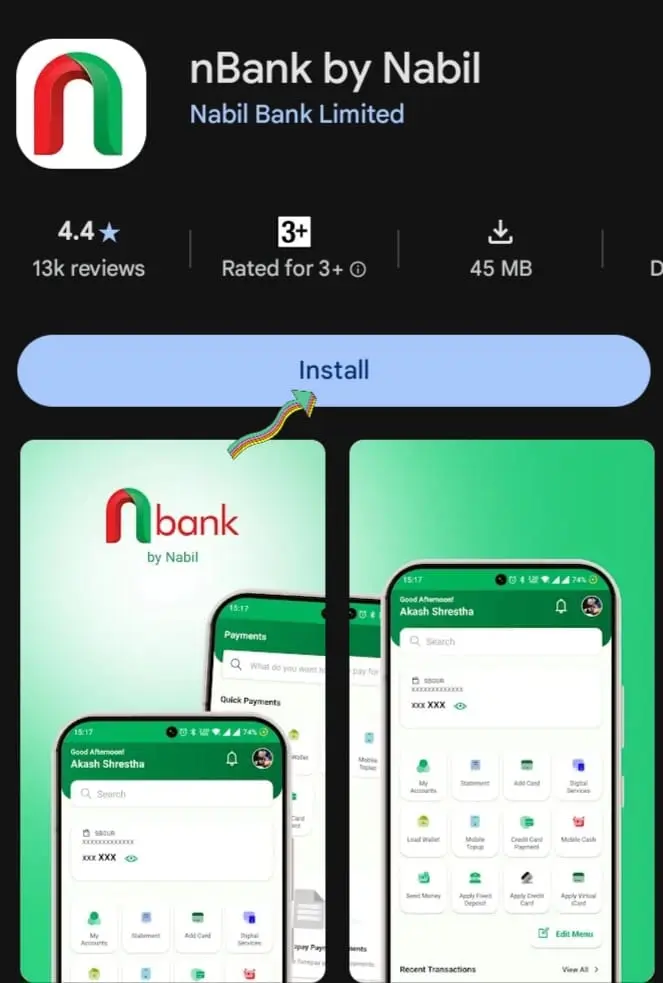
1. Visit the official Nabil Bank website and locate the nBank app download option.
2. Install the official app from the appropriate app store.
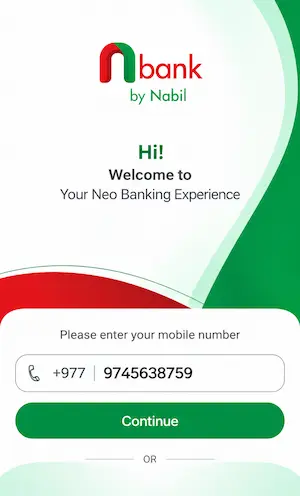
3. Open the app, enter your registered mobile number, and tap Continue.
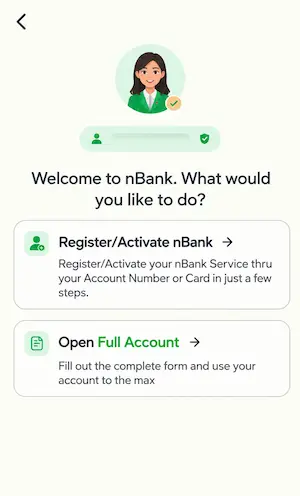
4. Tap Register or Activate to start the registration process.
5. Tap Through Account Number to continue registration.
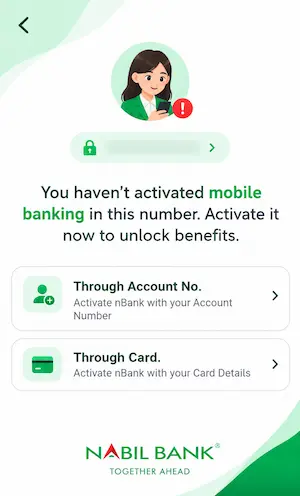
6. Enter your bank account number for verification.
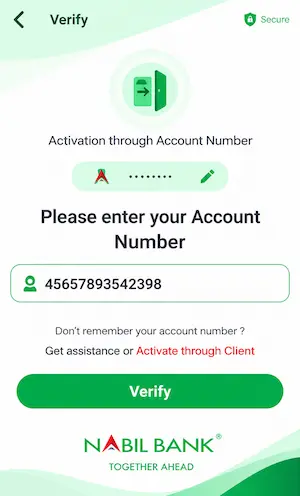
7. Tap “Send OTP” to receive a one-time password on your registered mobile number.
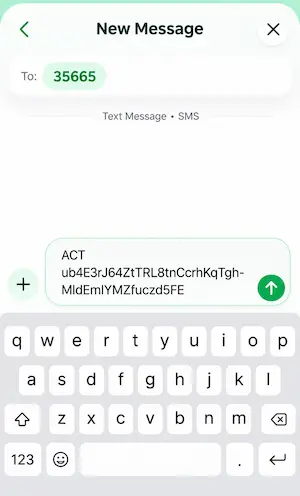
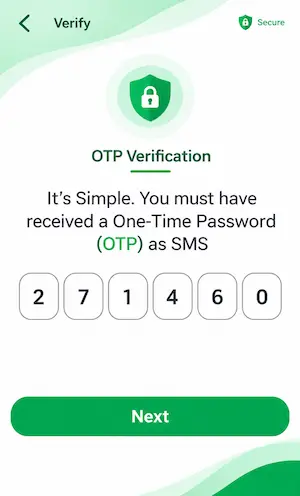
8. Enter the OTP sent to your registered mobile number to verify your identity.
9. Enter the date of birth you provided when opening your bank account.
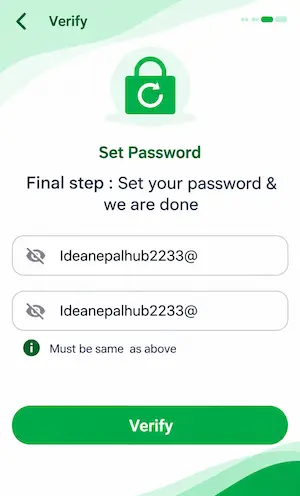
10. Set your login password for your mobile banking account.
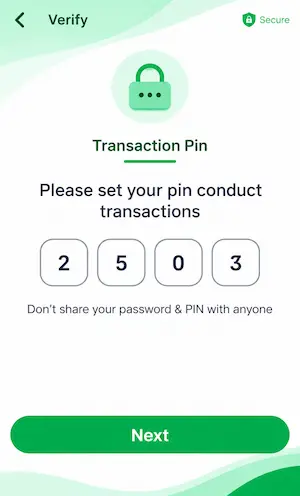
11. Set your transaction PIN to authorize transactions.
12. Once the app confirms successful activation, log in using your banking credentials.
Important: The available registration options and exact screen labels may change when the app is updated. Follow the current instructions in the official app rather than relying on screenshots from an older version.
If activation fails, contact Nabil Bank through its official contact page for assistance.
Download the Official Mobile Banking App.
If you want to learn more about Nabil Bank, read our complete guide.
How to Activate Mobile Banking in Prime Bank
Prime Commercial Bank offers mobile banking through its Prime Smart app. The bank’s mobile banking FAQ states that customers need an eligible bank account and must register for the service before using it.
Here is how to get started:
1. If you have not yet registered for Prime Bank’s mobile banking service, contact your nearest Prime Bank branch to ask about the registration requirements.
2. If branch registration is required, request the Mobile Banking Application Form and complete the necessary details.
3. Submit the completed form to the bank’s customer service department, if required.
4. Follow the bank’s instructions to activate your Prime Smart mobile banking service.
5. Download the official Prime Smart app from the Google Play Store or Apple App Store.
6. Open the app and tap “Register” or “Activate” to begin the registration process.
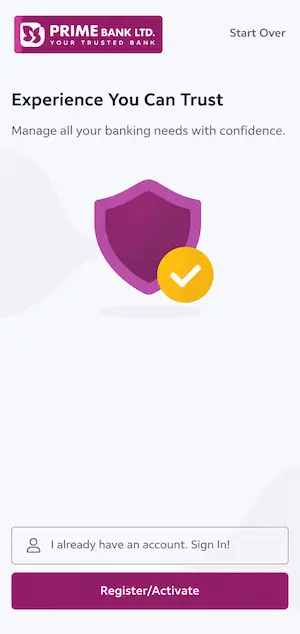
7. Accept the Terms and Conditions to continue.
8. Enter your registered mobile number and tap Continue.
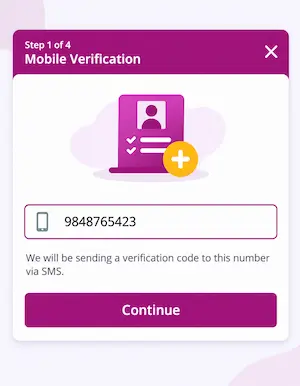
9. Tap “Send OTP” to receive a verification code on your registered mobile number.

10. Enter the OTP sent to your registered mobile number and tap Continue.
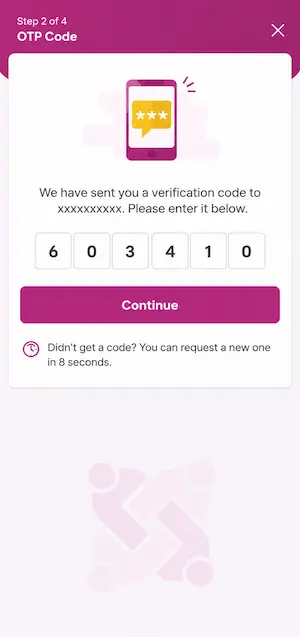
11. Enter your bank account number and tap Continue.

12. Set a strong password for your mobile banking account.
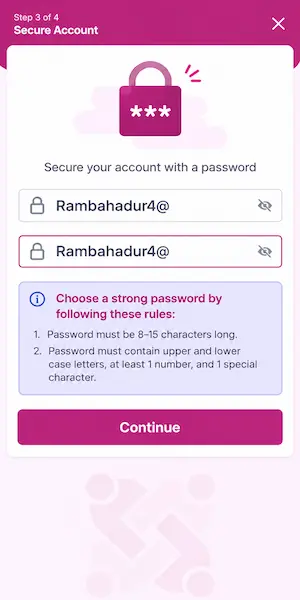
13. Set a secure transaction PIN and tap Continue.
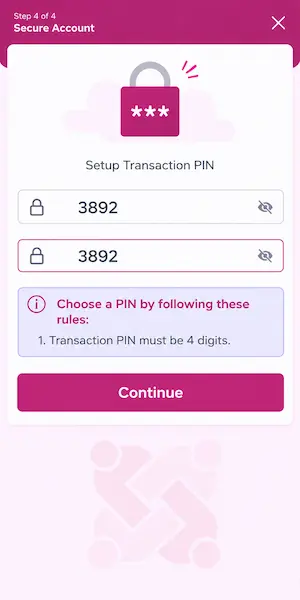
14. Log in using the credentials provided or created through the bank’s approved process.
Prime Bank’s published FAQ describes branch registration as a way to enroll in mobile banking. However, registration requirements may change. Contact the bank to confirm the current process before visiting a branch.
You can also consult the bank’s official mobile banking FAQ for its published requirements.
Download the Official Mobile Banking App. Prime Commercial Bank Official Website.
How to Activate Mobile Banking in Prabhu Bank
Prabhu Bank provides mobile banking through DigiPrabhu. Its official FAQ explains that customers can register at a branch and then activate the service through the mobile app or web interface.
Follow these steps:
1. Visit your nearest Prabhu Bank branch and request registration for DigiPrabhu if you have not already enrolled.
2. Wait for the bank’s SMS notification confirming that your user has been created.
3. Download the official DigiPrabhu app from the Google Play Store or Apple App Store.
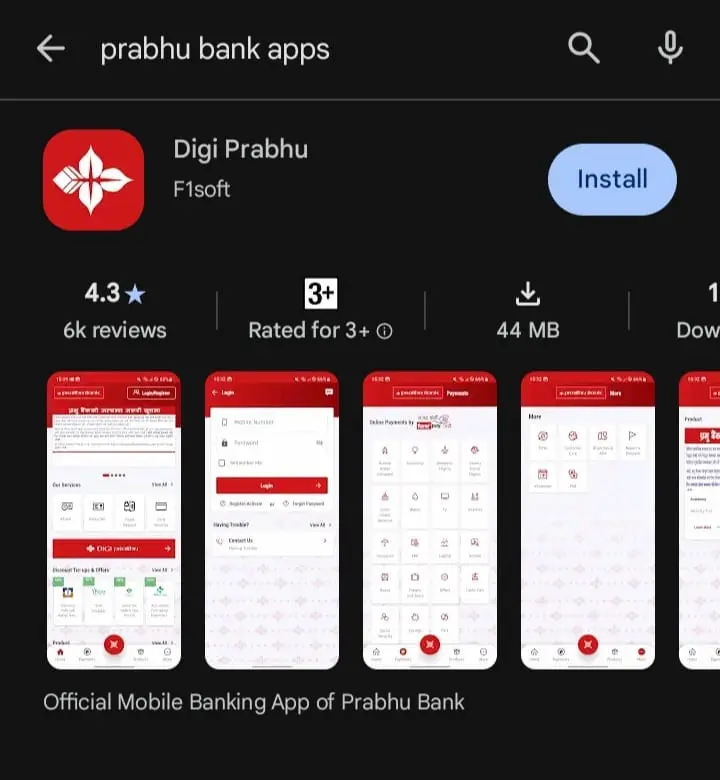
4. Open the app, accept the Terms and Conditions, and tap Register or Activate.
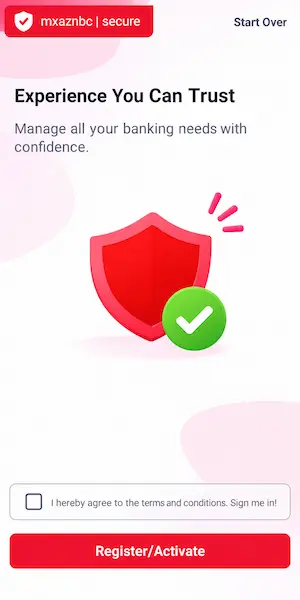
5. Enter your registered mobile number and tap Continue.
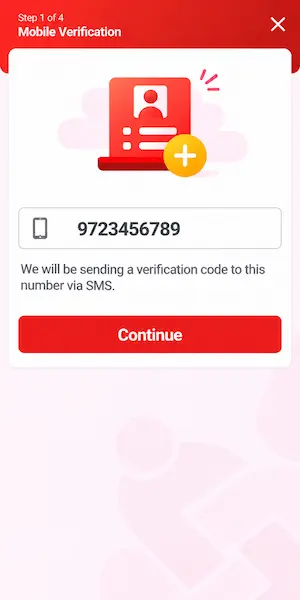
6. Enter the OTP sent to your registered mobile number and tap Continue.
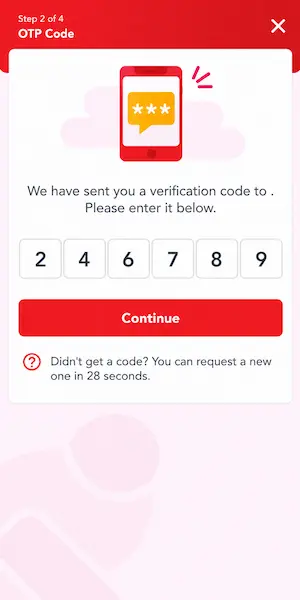
7. Enter your registered bank account number for verification and tap Continue.
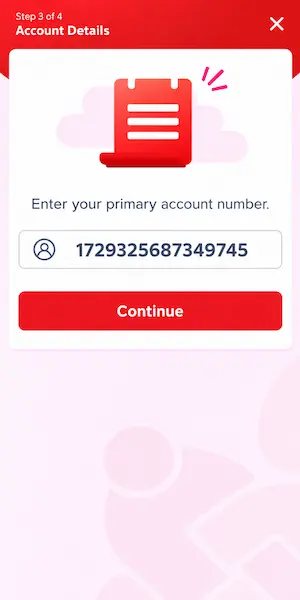
8. Set a login password for your mobile banking account and tap Continue.
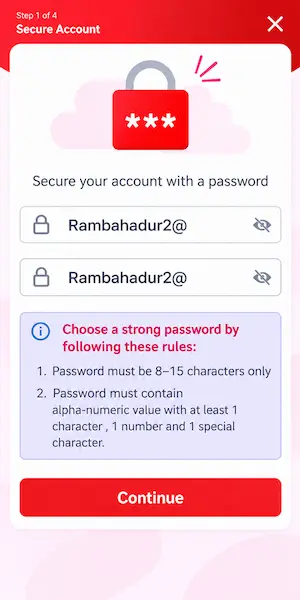
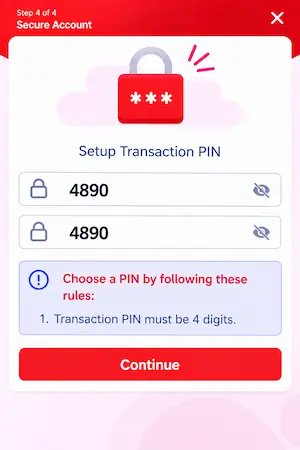
9. Set a transaction PIN and tap Continue.
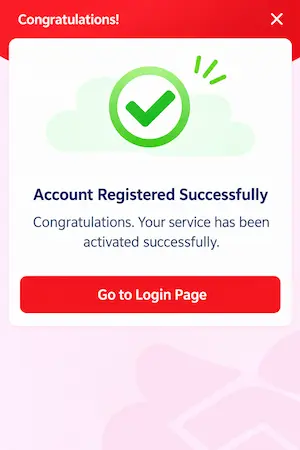
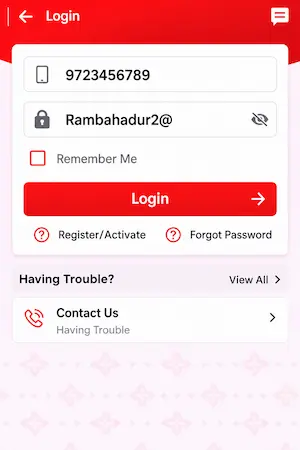
10. Follow the remaining instructions to complete the activation process, then go to the login page.
12. After activation, you can access the mobile banking services available for your account.
If you need further help, visit the official DigiPrabhu FAQ or contact Prabhu Bank through its official website.
Download the Official Mobile Banking App.
What Should You Do If Mobile Banking Activation Fails?
Sometimes, mobile banking activation does not work on the first attempt. The following checks may help:
- Check your registered mobile number: Make sure you are using the number linked to your bank account.
- Verify the OTP: Enter the code correctly and make sure it hasn’t expired.
- Check your network connection: Make sure your phone has a reliable mobile or Wi-Fi connection.
- Allow required permissions: Some apps may need permission to send verification messages or complete other security checks.
- Update the app: Install the latest official version if an update is available.
- Contact your bank: If your account is not registered for mobile banking or your details do not match, the bank may need to resolve the issue.
Do not repeatedly share sensitive account information with people claiming to offer activation support. Use the bank’s official contact channels.
Is Mobile Banking Safe to Use?
Mobile banking can be convenient, but you should protect your account and personal information.
Follow these safety tips:
- Download the banking app only from an official source.
- Never disclose your OTP, login password, or transaction PIN to anyone.
- Use a strong password and keep your phone protected with a screen lock.
- Avoid logging in through suspicious links sent by SMS, email, or social media.
- Contact your bank immediately if you notice an unfamiliar transaction or suspect that someone has accessed your account.
Your bank may have additional security requirements, so read its official instructions before using the service.
Frequently Asked Questions
How do I activate mobile banking on my phone?
Download your bank’s official mobile banking app, open it, and select the registration or activation option. Enter the required details, verify your identity, and create your login credentials if prompted. Some banks require branch registration before you can activate the app.
Can I activate mobile banking without visiting a bank?
The availability depends on your bank and the status of your account. Some banks allow eligible customers to register through their apps, while others require branch registration first. Check your bank’s current instructions before starting.
Can I activate mobile banking with a new mobile number?
Your mobile number generally needs to match the number registered with your bank. If you have changed your number, contact your bank and update your details before attempting activation.
Do I need a debit card to activate mobile banking?
Not always. Requirements vary by bank and by the registration method available in its app. Some methods may use your account number and registered mobile number, while others may request additional information.
What should I do if I do not receive an OTP?
Check that your registered SIM is active, your phone has network coverage, and the number linked to your bank account is correct. Check your messages for the verification code and try again according to the app’s instructions. If the problem continues, contact your bank.
Can I use mobile banking immediately after activation?
You can generally log in once activation is complete. However, some services or transaction limits may depend on your registration status, account type, or the bank’s verification requirements. Check your bank’s rules before making a transaction.
Final Thoughts
Knowing how to activate mobile banking can make everyday banking easier and more convenient. The activation process varies by bank, so Nabil Bank, Prime Bank, and Prabhu Bank customers should follow their bank’s official instructions.
Always download the official banking app and protect your OTP, login password, and transaction PIN. If you face any activation problems, contact your bank directly for assistance.
Pingback: Nabil Bank Guide: Helpful Services, Rates & Contact (2026)
Pingback: Prime Bank Nepal 2026: Best Complete Guide to Banking Services & ATM