
Welcome to this guide on how to check IPO results in Mero Share 2026. After an IPO allotment result is published, you can easily check online whether you have been allotted shares or not.
You can check your IPO result through the official IPO result service and your Mero Share account. In this article, we will explain how to check IPO results in 2026, how to check IPO results online, what to do if the result is not showing, and what happens after you are allotted shares.
Table of Contents
What is an IPO Result?
An IPO Result is the information that shows whether you received any shares from the IPO you applied for and how many shares were allotted to you.
For example, if you applied for 10 shares of a company’s IPO, you can find out after the allotment whether you received the shares and how many shares were allotted to you.
How to Check IPO Results in Mero Share 2026?
There are two ways to check your IPO result.
First Way: Check IPO Result by Logging in to Mero Share
Step 1: Open the Mero Share Website or App
If you are opening Mero Share through Google, go to the search bar and search for Mero Share Login.
Open the official Mero Share website or app.
Step 2: Log in to Your Mero Share Account
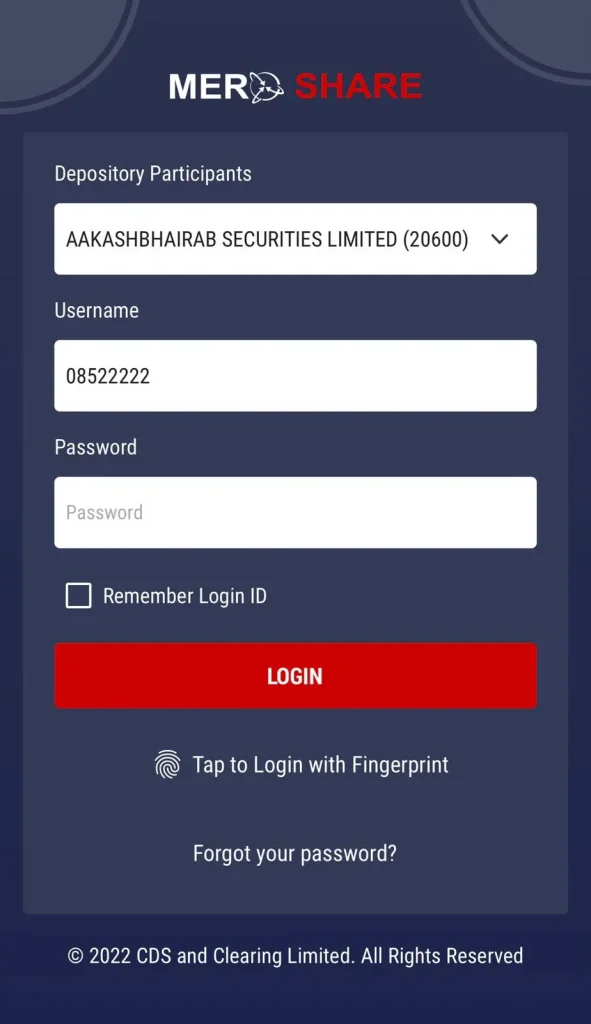
Enter your Username and Password, select your DPID, and log in to your Mero Share account.
Make sure you enter the required details correctly.
For security, do not share your Mero Share password with anyone.
Step 3: Go to My ASBA
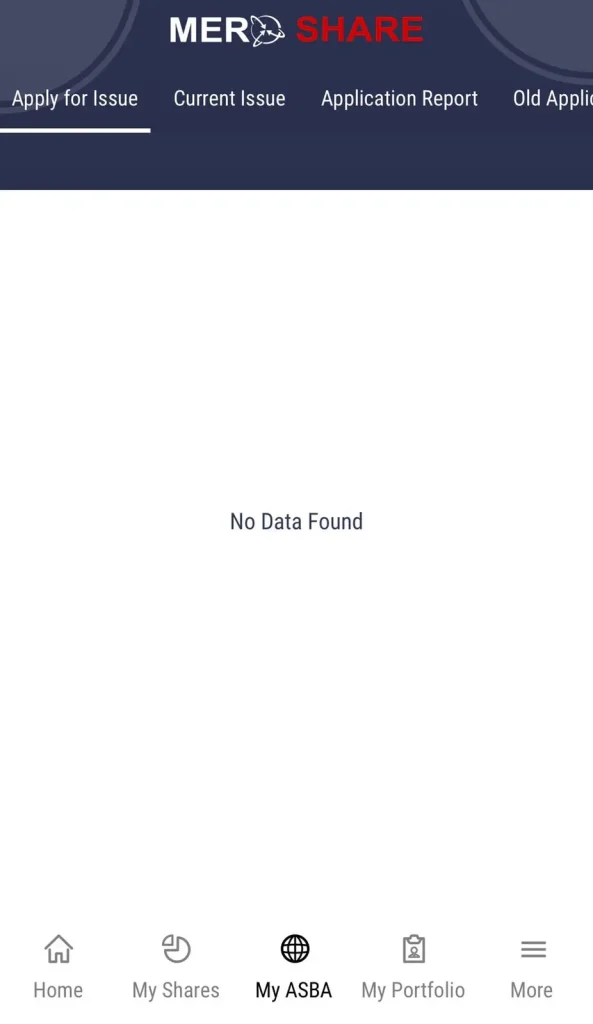
After logging in to Mero Share, find the My ASBA option on the dashboard.
Then, click on Application Report. CDSC’s Mero Share documentation also directs users to My ASBA → Application Report to view their IPO application details.
Step 4: Find the IPO You Applied For
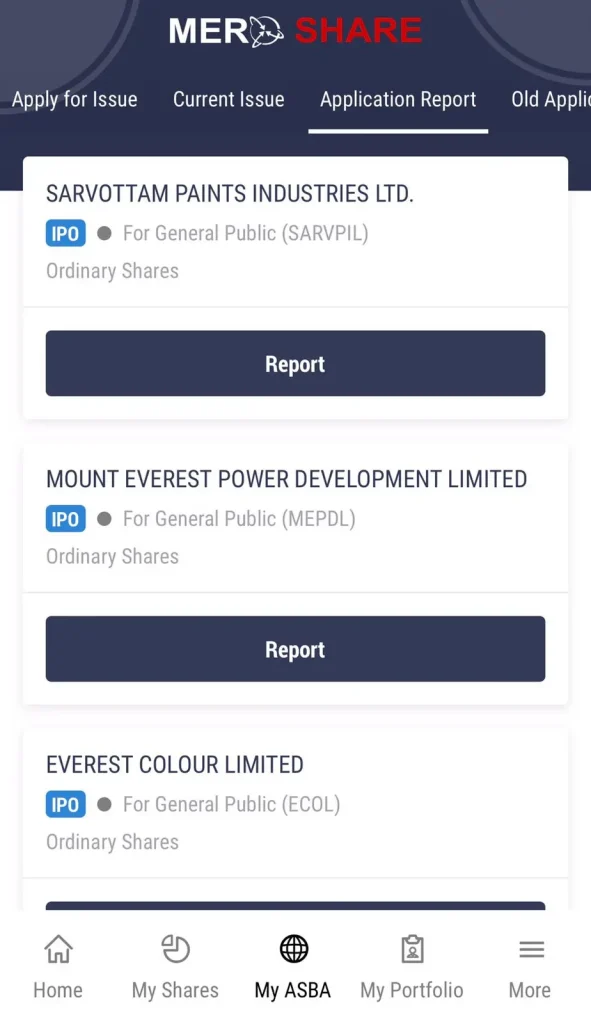
After clicking Application Report, you can see the details of the IPO you applied for.
You can check the company name, applied quantity, and other application details.
Step 5: Check Your IPO Allotment Result
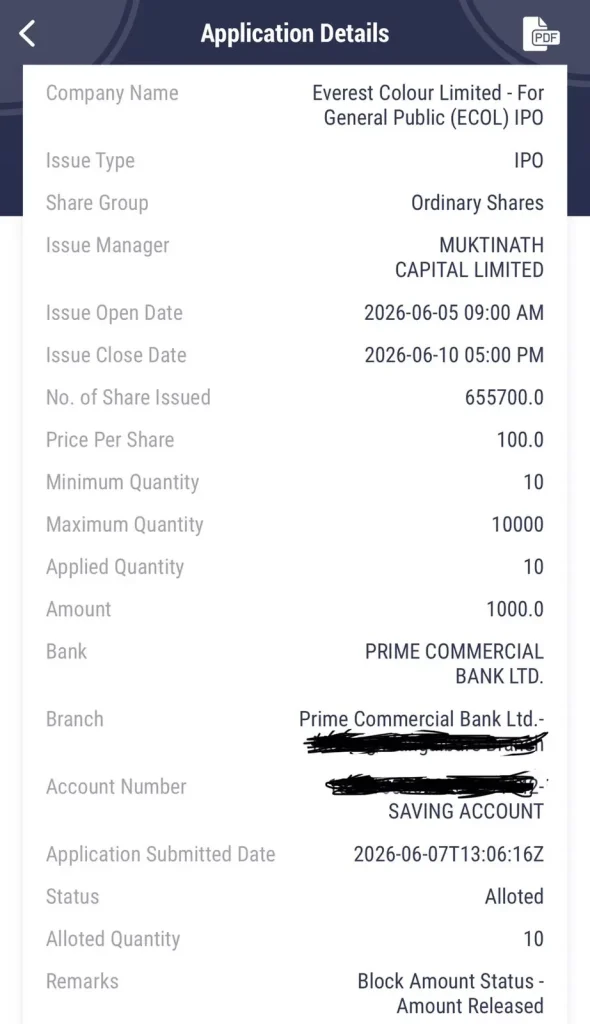
After the IPO allotment process is completed, you can check your allotment status.
If you have received shares, the status will show Allotted, and the Allotted Quantity will show the number of shares you received.
If you have not received any shares, the status will show NOT Allotted.
Second Way: Check IPO Result Through the Official Website
Step 1: Search for CDSC IPO Result on Google
Go to Google and search for IPO Result CDSC.
After searching, you will see different websites in the search results.
Step 2: Open the Official IPO Result Website
From the search results, open the official CDSC IPO Result website.
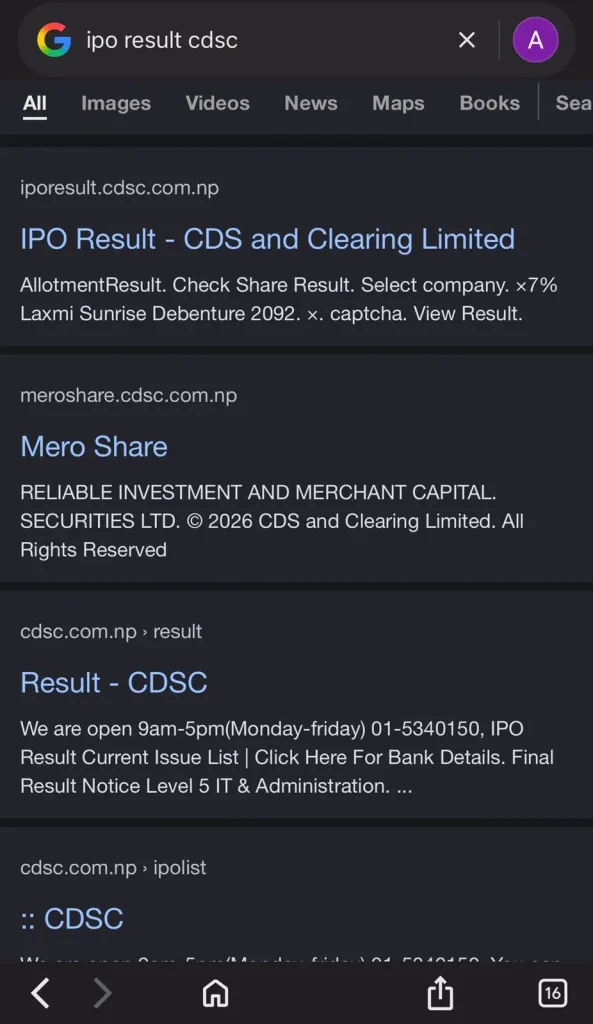
Official IPO Result Website: https://iporesult.cdsc.com.np/
Step 3: Enter the Required Details
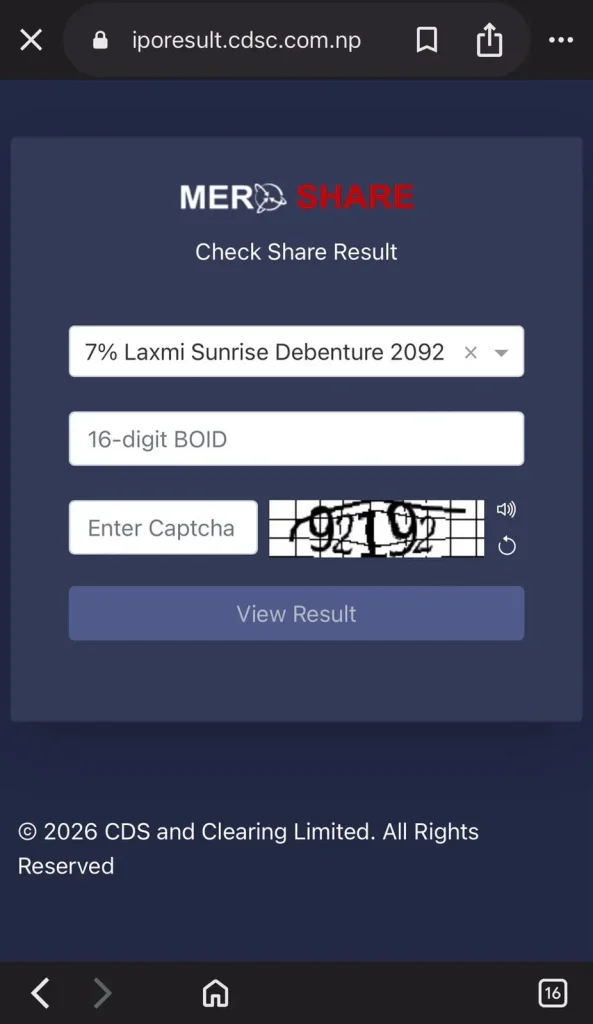
On the IPO result website:
- Select the Company Name.
- Enter your BOID.
- Complete the CAPTCHA.
- Finally, click on View Result.
Step 4: Check Your IPO Result
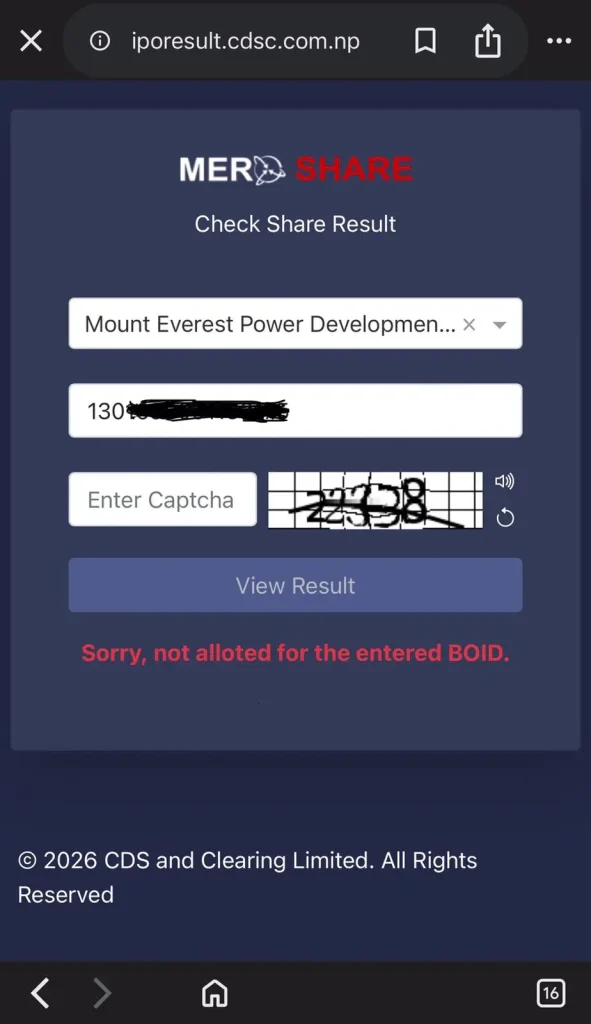
If you have been allotted shares, you may see a message such as Congratulations, Allotted! The Allotted Quantity will also show the number of shares you received.
If you have not been allotted any shares, you may see a message such as Sorry, Not Allotted for the Entered BOID.
Can IPO Results Only Be Checked Through Mero Share?
No. You do not have to check your IPO result only through Mero Share.
You can use Mero Share to check your IPO applications, Demat account, and other share-related information. However, after the IPO allotment result is published, you can also check on online your IPO result through the official IPO result service.
Therefore, when checking your IPO result, it is safer to use the official source.
Do not enter your BOID, password, or other sensitive information on random websites that appear in Google search results.
Official Website Link: https://iporesult.cdsc.com.np/
What to Do If IPO Result Is Not Showing in Mero Share?
There can be several possible reasons why your IPO result is not showing in Mero Share:
- The IPO allotment process has not been completed yet.
- The result has not been officially published yet.
- The website may be experiencing high traffic.
- The system may be undergoing an update.
- The information may take some time to update in the system.
Therefore, if your IPO result is not showing immediately, wait for some time and check again later.
How to Check Whether an IPO Has Been Allotted?
After checking your result through the official IPO Result Website, you can find out your IPO allotment status.
If you have been allotted shares, the allotted shares information will be displayed. After that, the process of transferring the shares to your Demat account will proceed.
If you have not received any shares, the status will show “Not Allotted.” The amount blocked for the IPO application will be released according to the relevant banking process.
However, the time required for share transfer and fund release may vary depending on the IPO and the processing time of the relevant institutions.
Do not immediately trust unverified IPO results shared on social media. Always check your result through the official IPO Result Website.
Things to Keep in Mind When Checking Mero Share IPO Result
When checking your Mero Share IPO Result, keep the following things in mind:
- Do not immediately trust unverified IPO results shared on social media.
- Use only the official website or a trusted platform.
- Do not share your Mero Share password with anyone.
- Do not enter your BOID or personal information on random websites.
- Confirm that the IPO result has been officially published before checking it.
If the website is slow or not working, try again after some time.
Frequently Asked Questions.
How to see mero share result?
You can log in to your Mero Share account and go to the My ASBA section to view information about your IPO application.
After the IPO allotment result is published, you can also check your allotment status through the official CDSC IPO Result website.
Can You Check Mero Share IPO Result on Mobile?
Yes. You can access Mero Share on your mobile phone using an internet connection.
You can log in through a mobile browser and check information related to your IPO applications. Mero Share also has a mobile app that provides access to its services, including My ASBA.
What Do You Need to Check an IPO Result?
You need your Mero Share account login details and the required IPO application or Demat account information to check your IPO result.
What Happens If You Are Not Allotted an IPO?
If you are not allotted an IPO, the amount blocked for your IPO application will be released according to the relevant process.
Where Can You See Your Allotted IPO Shares?
After the IPO allotment and share transfer process is completed, the allotted shares may appear in your Demat account.
You can also verify the shares through the Portfolio section and related account information in Mero Share.
Are Mero Share Result and IPO Result the Same?
Mero Share Result and IPO Result are terms people commonly use to refer to the IPO allotment status.
You can check whether you have been allotted shares through Mero Share or the official IPO Result website.
Conclusion
Checking your IPO result through Mero Share is not very difficult. You can check your application status through the My ASBA → Application Report section in Mero Share.
If you are looking for how to check IPO result in mero share 2026, you can follow the steps mentioned above to easily check your allotment status.
Now you know how to check mero share result and verify your allotment status.
When checking information related to IPOs and the share market, always use official and trusted sources.
You May Like: https://ideanepalhub.com/pan-card-in-nepal-using-nagarik-app/
Pingback: NEPSE Chart Today: NEPSE Index, Market Trend & Analysis– 17 September 2026 - IdeaNepalHub
Pingback: iPhone 18 Pro Max Price in Nepal 2026: Specifications, Release Date and Features - IdeaNepalHub